Kotlin Multiplatform (KMM) — Getting Started With Android & iOS
Kotlin Multiplatform is a powerful tool that enables developers to share code between various platforms such as Android, iOS, Web, and Desktop. Using a singl...

Kotlin Multiplatform is a powerful tool that enables developers to share code between various platforms such as Android, iOS, Web, and Desktop. Using a single codebase allows developers to streamline their workflow, significantly reducing the time and effort required to maintain separate codebases for each platform.
How Does Kotlin Multiplatform Work?
Kotlin Multiplatform allows you to create common modules for shared code and platform-specific modules for native implementations. This modular approach ensures that your app maintains high performance and leverages the strengths of each platform.
With Compose Multiplatform, a Kotlin-based declarative UI framework by JetBrains, you can create fully cross-platform apps by sharing user interfaces across Android and iOS.
Kotlin Multiplatform allows you to maintain a single codebase of the application logic for different platforms.
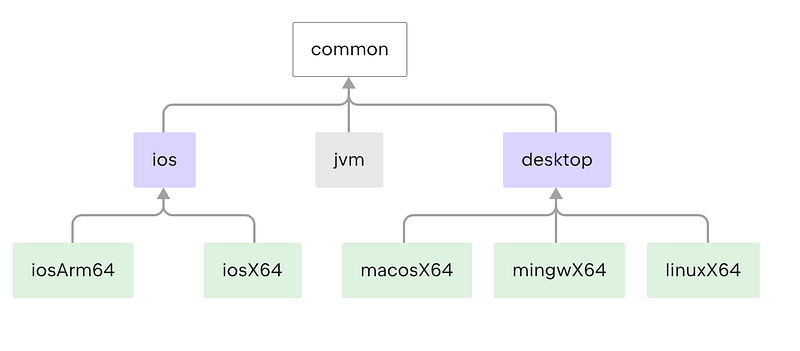
Let’s Get Started
In this guide, we will concentrate solely on Android and iOS. We will explore how to share common application logic with the native UI using Compose Multiplatform.
You will need,
- Android Studio
- Xcode
- JDK
- Kotlin Multiplatform plugin (installed inside Android Studio)
To ensure everything functions correctly, install the KDoctor tool (Mac Only) using brew install kdoctor & run this kdoctor to diagnose any problems.
The quickest method to initiate a new KMM project with a shared UI is through the Kotlin Multiplatform Wizard.
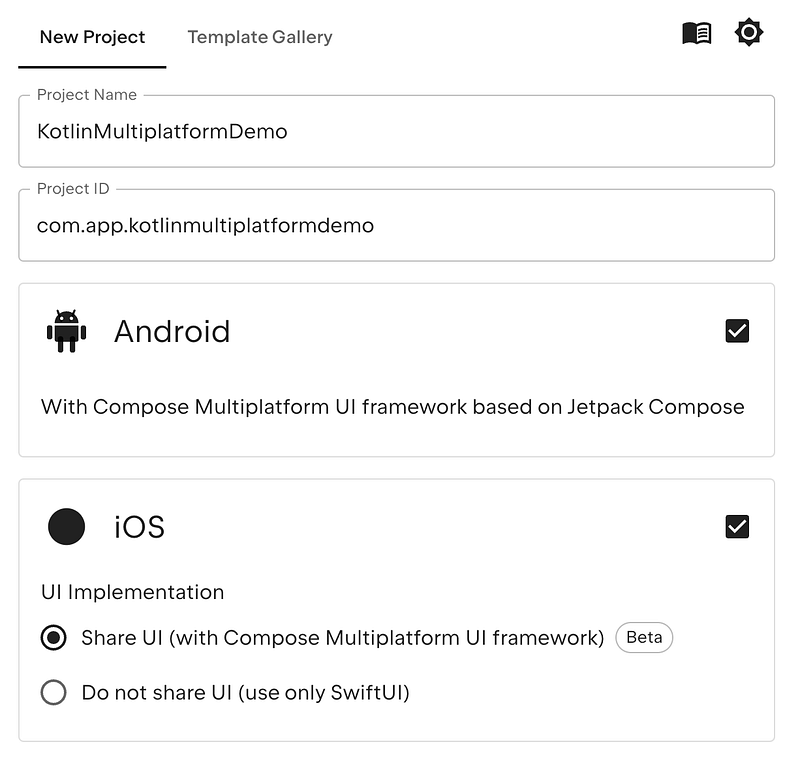
After creating the project, you’ll find the following structure,
 Detailed View Of KMM App Directories
Each directory serves a specific purpose in enabling code sharing between Android and iOS platforms. Here’s a breakdown that simplifies understanding for beginners:
androidMain:
- MainActivity.kt: This Kotlin file typically contains the entry point for the Android app. It initializes the app and handles Android-specific lifecycle events.
- Platform.android.kt: This file contains platform-specific implementations or adaptations required for Android. It may include code that interacts with Android-specific APIs or behaviors.
- res/AndroidManifest.xml: This XML file defines essential information about the Android app, such as its name, permissions required, activities, and services.
commonMain:
- compose-multiplatform.xml: This XML file contains drawable resources that can be used across both Android and iOS platforms, leveraging Kotlin’s multiplatform capabilities for resource sharing.
- App.kt: This Kotlin file contains shared application logic & UI that can be used across both Android and iOS platforms.
- Greeting: This might be a Kotlin file or a package containing common greeting-related functionality, such as generating greetings or messages.
- Platform.kt: This file contains common platform-agnostic declarations or interfaces. It typically defines expected behaviors or APIs that platform-specific implementations (in androidMain and iosMain) will fulfill.
iosMain:
- MainViewController.kt: In an iOS context, this Kotlin file represents a view controller or UI component specific to iOS. It handles iOS-specific UI interactions or integrates Kotlin code with iOS views.
- Platform.ios.kt: Similar to Platform.android.kt, this file contains platform-specific implementations or adaptations required for iOS. It may interact with iOS-specific APIs or behaviors.
Running The App

These two configurations allow for easy launching of both the Android and iOS apps.
When running, the default template app appears like this:

In the upcoming sections of this KMM article series, we will cover more advanced integrations. For now, let’s modify the app to display a list of data.
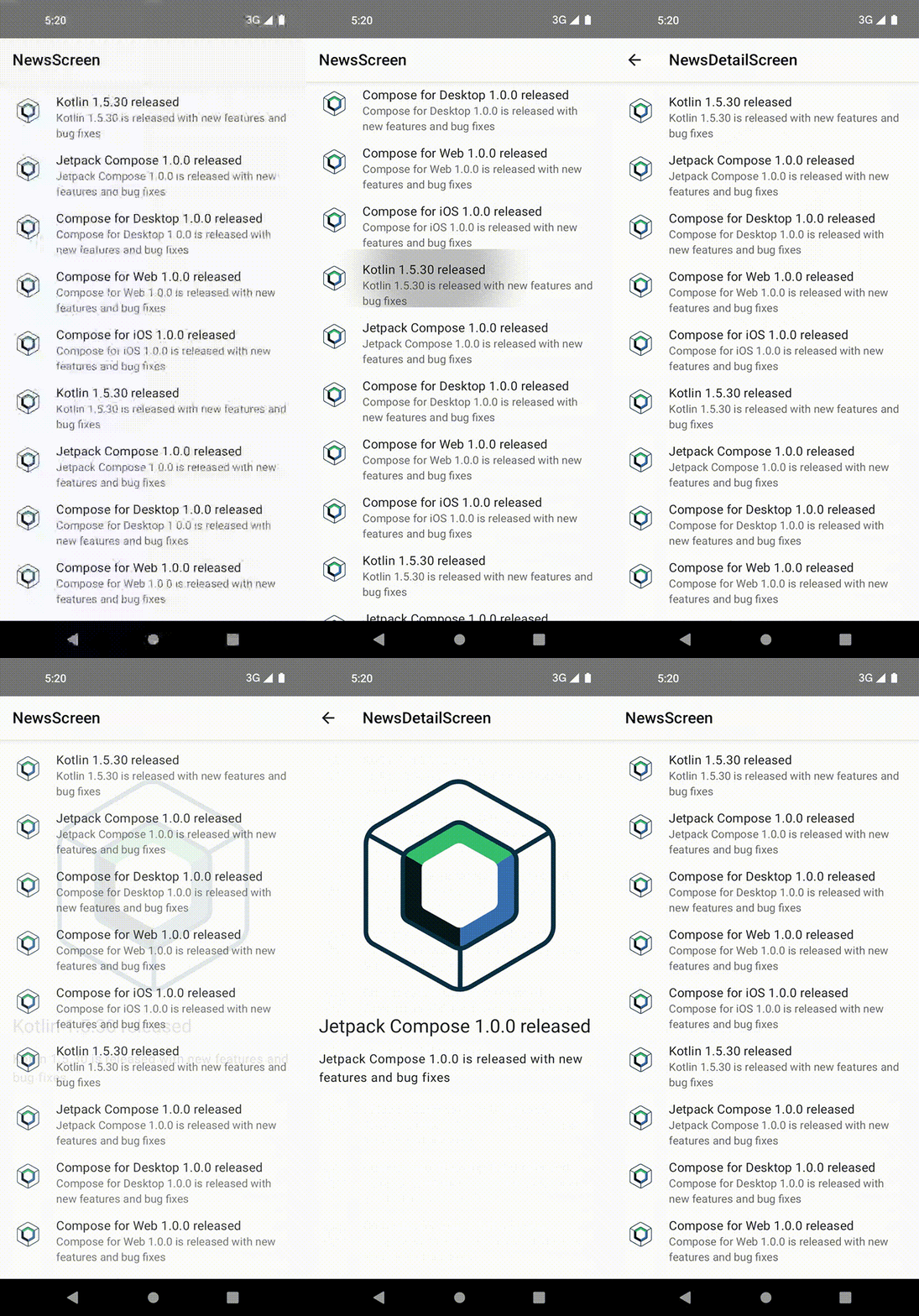
To keep things simple, we’ll load a static news list and a detail screen to experiment with the experimental navigation library for multiplatform development.
Let’s Code

First, let’s install the navigation library inside the build.gradle.kts of composeApp directory.
kotlin {
    // ...
    sourceSets {
        // ...
        commonMain.dependencies {
            // ...
            implementation("org.jetbrains.androidx.navigation:navigation-compose:2.7.0-alpha07")
        }
        // ...
    }
}
Let’s write the code for App.kt
enum class AppScreens(val title: StringResource) {
    NewsScreen(title = Res.string.news_screen),
    NewsDetailScreen(title = Res.string.news_detail_screen),
}

@Composable
@Preview
fun App(
    navController: NavHostController = rememberNavController()
) {
    val backStackEntry by navController.currentBackStackEntryAsState()

    MaterialTheme {
        Scaffold(topBar = {
            AppBar(
                title = AppScreens.entries.fastFirstOrNull {
                    backStackEntry?.destination?.route?.contains(it.name) == true
                }?.name ?: AppScreens.NewsScreen.name,
                canNavigateBack = navController.previousBackStackEntry != null,
                navigateUp = { navController.navigateUp() }
            )
        })
        {
            NavHost(
                navController = navController,
                startDestination = AppScreens.NewsScreen.name,
                modifier = Modifier
                    .fillMaxSize()

            ) {
                composable(AppScreens.NewsScreen.name) {
                    NewsScreen(navController = navController)
                }
                composable(
                    AppScreens.NewsDetailScreen.name + "/{newsId}",
                ) {
                    NewsDetailScreen(navController = navController)
                }
            }
        }
    }
}

@Composable
fun AppBar(
    title: String,
    canNavigateBack: Boolean,
    navigateUp: () -> Unit,
) {
    TopAppBar(
        backgroundColor = Color.White,
        title = {
            Text(
                text = title,
                color = Color.Black,
            )
        },
        navigationIcon = if (canNavigateBack) {
            {
                IconButton(onClick = navigateUp) {
                    Icon(
                        imageVector = Icons.AutoMirrored.Filled.ArrowBack,
                        contentDescription = ""
                    )
                }
            }
        } else null,
    )
}
- This enum class defines the different screens of the app, each with a title from a
StringResource. App: This is the main composable function that sets up the navigation and UI.- Adds two composable destinations:
NewsScreenandNewsDetailScreen.
NewsScreen.kt
@Composable
fun NewsScreen(navController: NavController) {
    val news by remember { mutableStateOf(NewsModel.generateNews()) }
    LazyColumn {
        items(news.asList()) { newsItem ->
            NewsItemView(newsItem,
                onClick =
                {
                    navController.navigate(
                        AppScreens.NewsDetailScreen.name + "/${newsItem.id}",
                    )

                })
        }
    }
}

@OptIn(ExperimentalMaterialApi::class)
@Composable
private fun NewsItemView(
    newsItem: NewsModel,
    onClick: () -> Unit = {}
) {
    ListItem(
        modifier = Modifier.clickable { onClick() },
        text = { Text(newsItem.title) },
        secondaryText = { Text(newsItem.description) },
        icon = {
            Image(
                modifier = Modifier.size(40.dp),
                painter = painterResource(newsItem.image),
                contentDescription = null
            )
        }
    )
}
- The
NewsScreenfunction initializes a list of news items usingrememberandmutableStateOfto maintain state. It - then uses a
LazyColumnto display these items efficiently. Each news item is rendered using theNewsItemViewcomposable, which structures the item with a clickableListItemit is containing an image, title, and description. - When a news item is clicked, it navigates to a detailed news screen using the
NavController.
NewsDetailScreen.kt
@Composable
fun NewsDetailScreen(navController: NavHostController) {
    val news by remember {
        val newsId = navController.currentBackStackEntry?.arguments?.getString("newsId") ?: "-1"
        mutableStateOf(
            NewsModel.generateNews()
                .firstOrNull { it.id == newsId.toLong() }
        )
    }
    Column(modifier = Modifier.fillMaxSize()) {
        Image(
            painter = painterResource(news!!.image),
            contentDescription = null,
            modifier = Modifier
                .fillMaxWidth()
                .fillMaxHeight(0.5f)
        )
        Text(
            text = news!!.title,
            style = MaterialTheme.typography.h5,
            modifier = Modifier.padding(horizontal = 16.dp, vertical = 8.dp)
        )
        Text(
            text = news!!.description,
            style = MaterialTheme.typography.body1,
            modifier = Modifier.padding(horizontal = 16.dp, vertical = 8.dp)
        )
    }
}
NewsModel.kt
data class NewsModel(
    val id: Long,
    val title: String,
    val description: String,
    val image: DrawableResource
) {
    companion object {
        fun generateNews(): ObjectList<NewsModel> {
            return objectListOf(
                NewsModel(
                    id = 1,
                    title = "Kotlin 1.5.30 released",
                    description = "Kotlin 1.5.30 is released with new features and bug fixes",
                    image = Res.drawable.compose_multiplatform
                ),
                // More Items...
            )
        }
    }
}
Adding String Resources
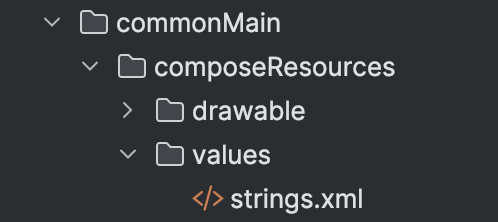
Inside the commonMain , create strings.xml under the values directory.
<resources>
    <string name="news_screen">News</string>
    <string name="news_detail_screen">News Detail</string>
</resources>
You'll encounter an error the first time you use these string resources in the view. This is normal because Compose generates the string when you rebuild the project.
Let’s Run The App

iOS:
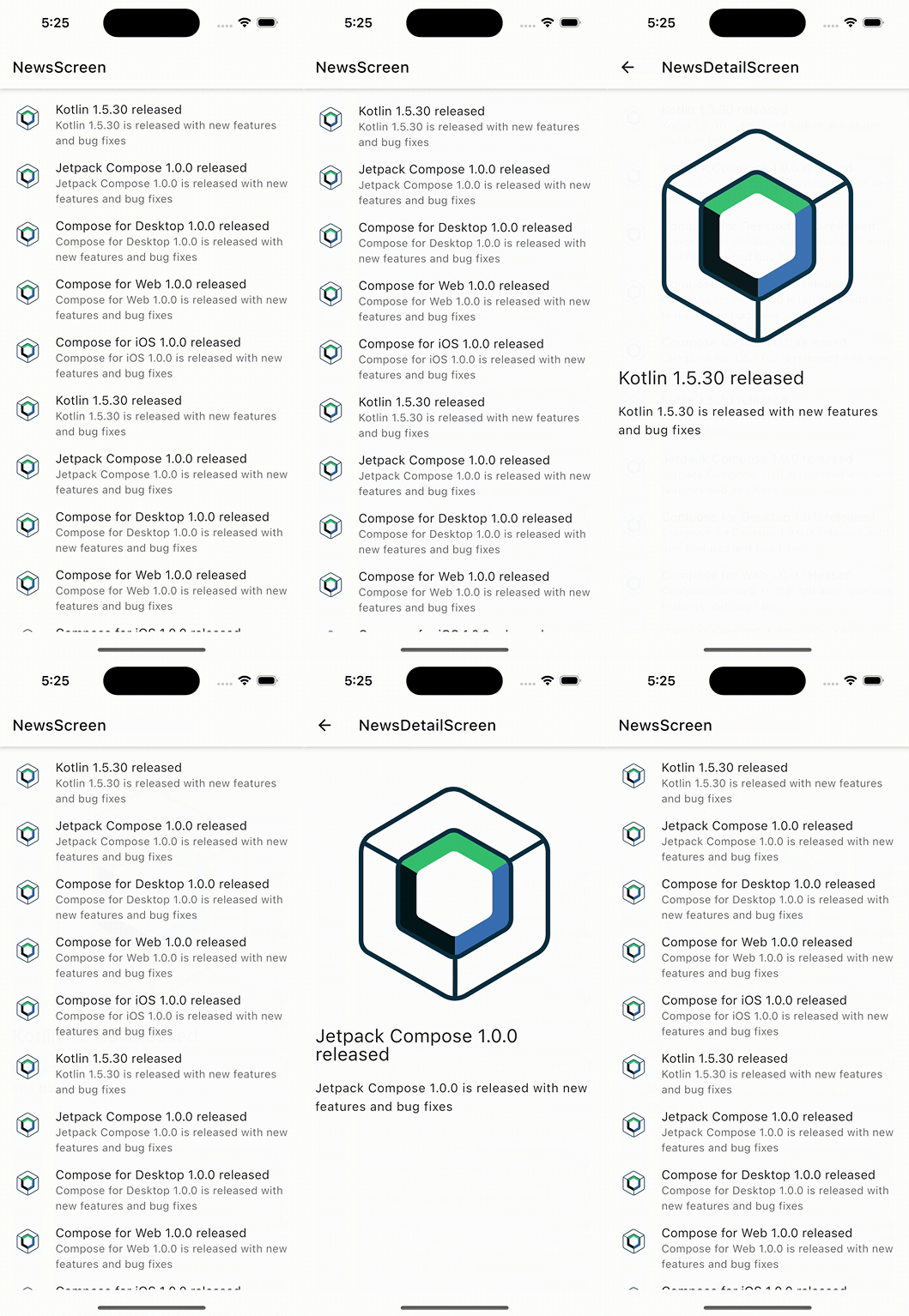
Android:
Conclusion
Through practical examples and screen recordings of both iOS and Android applications, we have seen firsthand the efficiency and flexibility it bring to cross-platform development.
The pros of Kotlin Multiplatform, such as code reusability, maintainability, and the ability to leverage platform-specific features, highlight its potential to streamline development processes and reduce time-to-market.
As the ecosystem continues to mature, we can expect even more robust tooling and community support to enhance the development experience further.